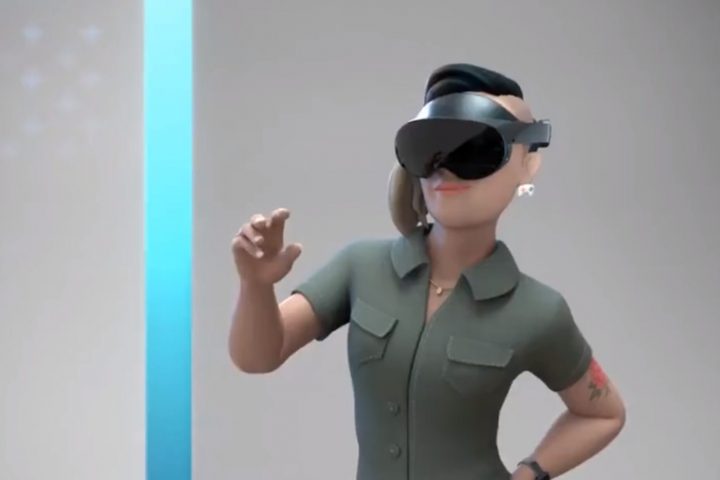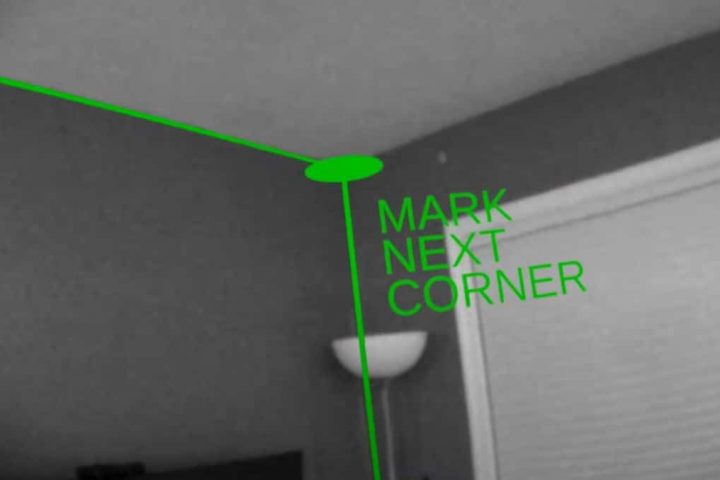

Quest’s new menu UI supports being displayed while inside a VR app. Developers can now release updates to enable this, on a per-game basis.
Last month, Facebook revealed a UI overhaul for the Oculus Quest standalone headset. As well as a new look and multi-window support for 2D system apps, the system menu can now display inside VR apps when brought up.
The PC-based Rift platform got a similar feature in beta back in late 2017, fully available one year after. Just like with that release, it will only work within an app if the developer updates it with support.
How To Support In Unity
Most Oculus Quest apps are built using the Unity game engine. To add support for system overlays in Unity, developers need to update OVRPlugin to at least v13 and enable ‘Focus Aware‘ in the OVRManager script attached to OVRCameraRig.
To check when the system menu is opened and closed, developers should use the OVRManager.InputFocusLost and OVRManager.InputFocusAcquired events.
Since the system menu takes over input handling and displays controllers visually, apps should hide hands or controllers when it’s open. Facebook also recommends hiding any objects within 2 meters of the player, since otherwise there could be “unexpected visual artifacts” (likely referring to depth conflicts).
Taking the time to add this feature means users can stay within your virtual world while still quickly able to invite friends, take screenshots, manage settings, and in the future potentially even text chat friends.
As the Quest operating system expands, this could lead to true multi-tasking in standalone VR some day in the future.
The post Oculus Quest Devs Can Now Let The System Menu Show Inside Their Apps appeared first on UploadVR.
Source: Oculus Quest Devs Can Now Let The System Menu Show Inside Their Apps