
Windows Mixed Reality VR headsets are set to be on the market in a matter of months, and Microsoft recently gave us a sneak peek at how you set them up.
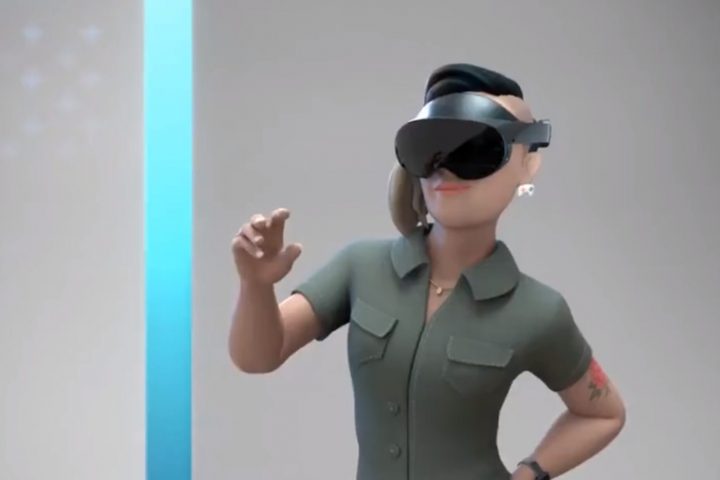
The company’s Nadia Steer-Mobley revealed how these devices will be installed and readied at a mixed reality talk at WinHEC in Taipei last month. She gave a look at a process which seems somewhat similar to the set up programmes for both the Oculus Rift and HTC Vive with a few key differences.
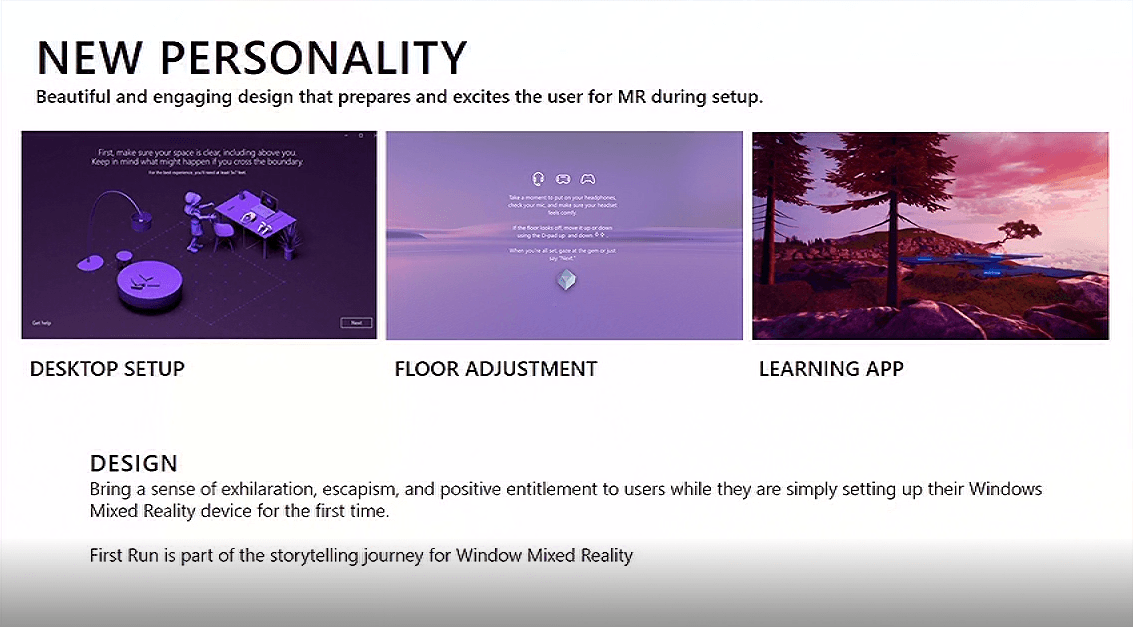
“We’ve created a brand new personality, we’ve simplified steps, we’ve added motion controller pairing,” Steer-Mobley explained, revealing some Windows Insider users were already seeing these additions.

Windows headsets may use inside-out tracking, but they still require a free play space, which is why the first thing any user has to do is clear out an area to use the headset in. For calibration, the user must put on the headset and then look above and below to align the floor inside VR.
Following this, a gem will appear in front of the user, which they’ll have to look at. They’ll then have to say the word ‘next’ out loud. This launches an introductory application.

Meanwhile, other processes will get your hardware prepped as quickly as possible. The system will automatically check that your tethered PC is able to run the attached headset. Following that, users will be introduced to their specific headset.
“This is one of my favorite parts at the moment of Windows Mixed Reality,” Steer-Mobley said, “because our OEM partners are building device companion applications, and those applications are unique to the device they’re building.”
In other words, Acer’s introductory app will differ from HPs and the other three headsets coming.
Next is the controller pairing, which will encompass either the new motion controllers or other selected input like a gamepad.

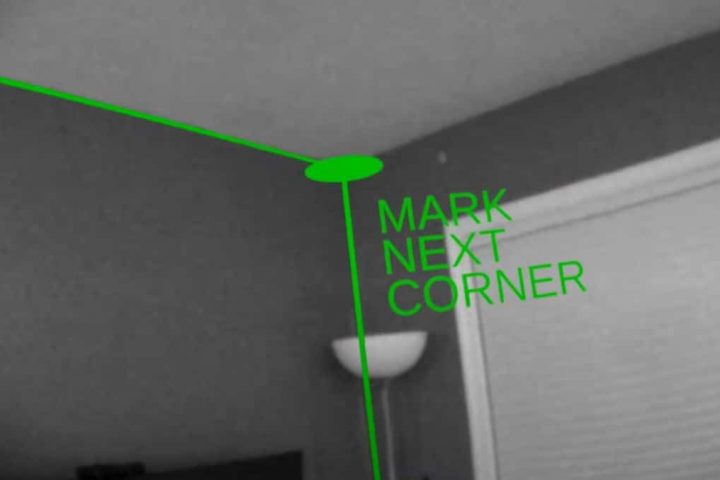
You’ll also have to do a lot of calibration for room boundaries. First, the user needs to hold their headset in front of the computer and then click the center button. Then they’ll be able to select between room-scale or (in Microsoft’s words) desk-scale VR, and they’ll be able to establish their own boundary which will be shown on-screen.
Crucially, the set up allows you to establish multiple “domains”, in Steer-Mobley’s words, that are suited to different rooms in your house.
Windows headsets are set to launch around this holiday season, though we’ve still got plenty to learn about them before then.
This story originally appeared on Uploadvr.com. Copyright 2017
 The PC Gaming channel is presented by Intel®‘s Game Dev program.
x
Thanks for your interest in the PC Gaming channel
Select the products you would like to subscribe to:
Country required
*By checking this box, you are confirming you are an adult 18 years or older and you agree to Intel contacting you with marketing-related emails or by telephone. You may unsubscribe at any time. Intel’s web sites and communications are subject to our Privacy Notice and Terms of Use.